
Edit data
Your YAML files appear as tables, and each file or list entry is a record. You edit records in a form, and Cloud writes the change back to the file.
-
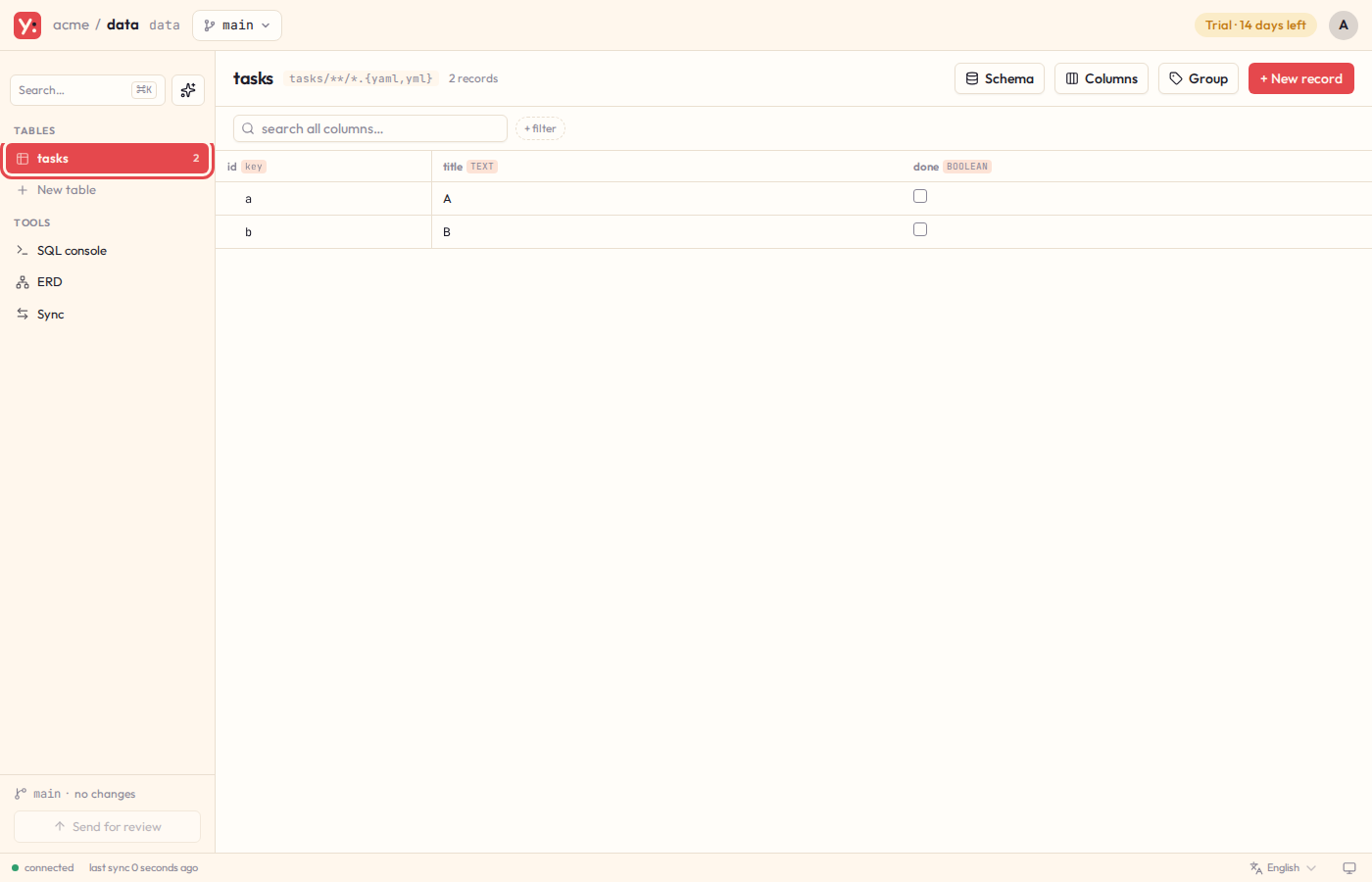
Select a table in the sidebar to see its records as rows.
-
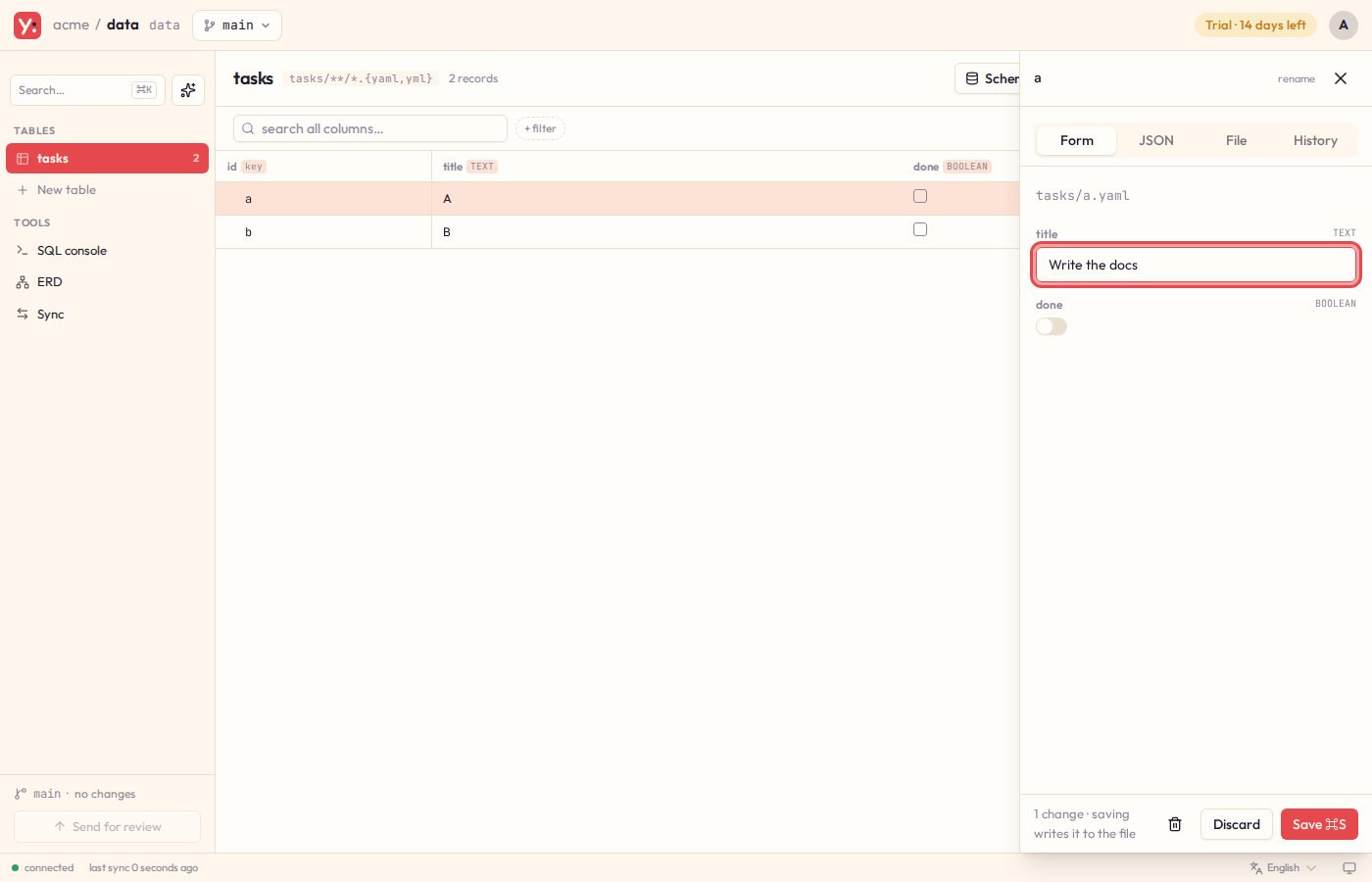
Select a row, then change a field in the form that opens on the right.
-
Select Save. The sidebar counts the change.
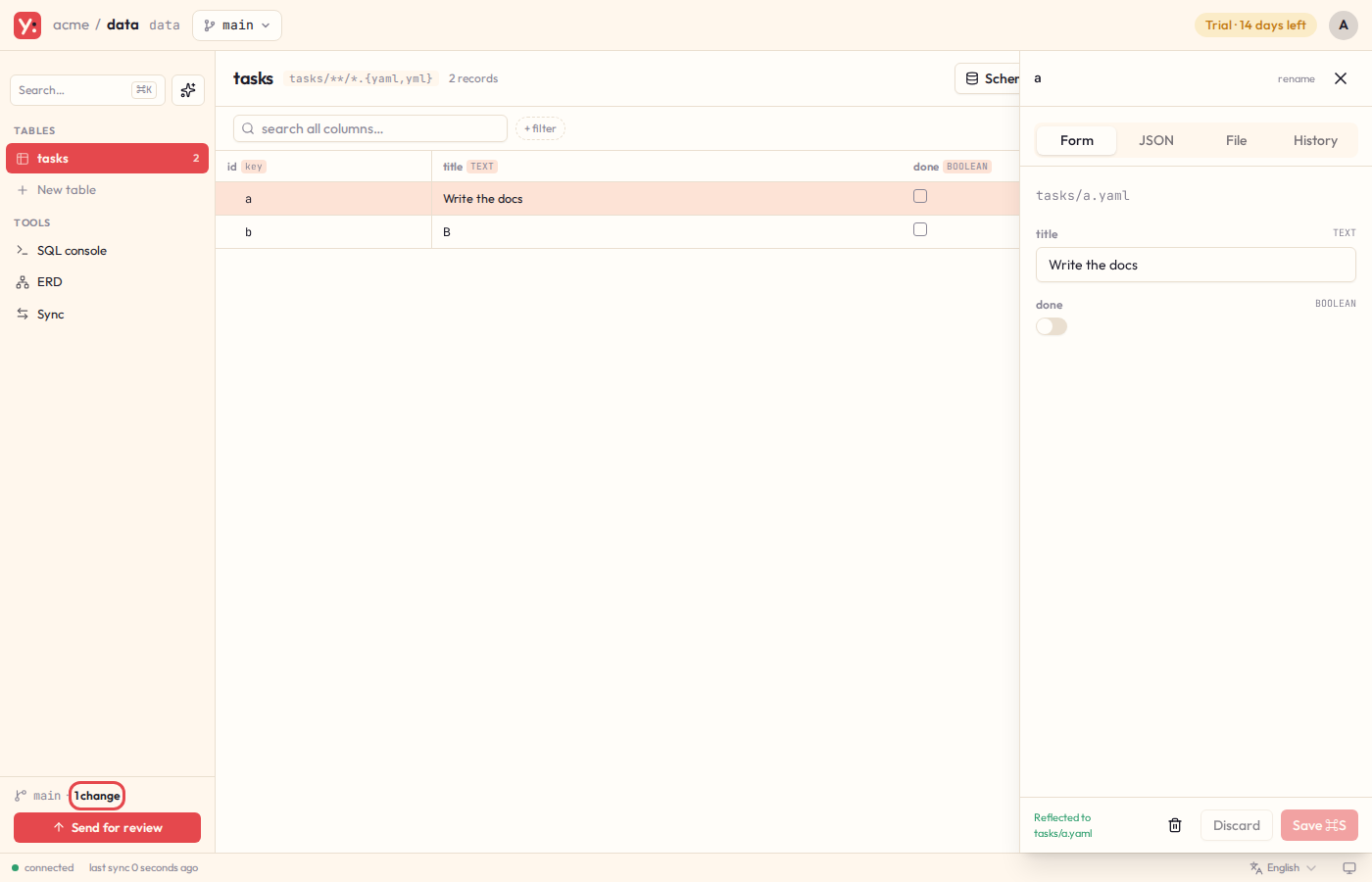
Saving writes the change to the record’s file in your browser’s copy of the repository. Nothing reaches GitHub until you send it for review. Until then, you can reload the page and your saved changes are still there.
Run SQL
Section titled “Run SQL”The SQL console runs queries against the same tables.
-
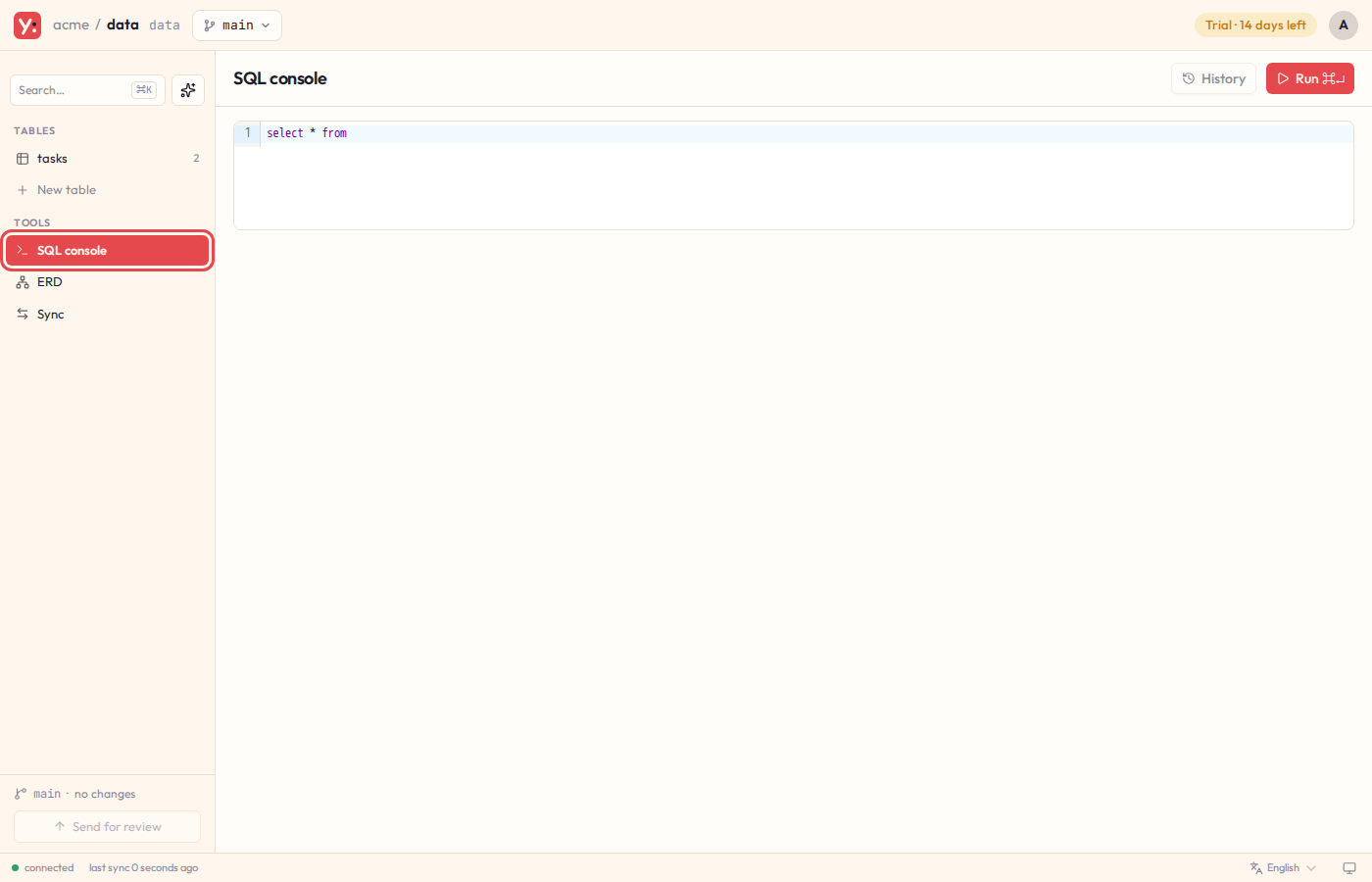
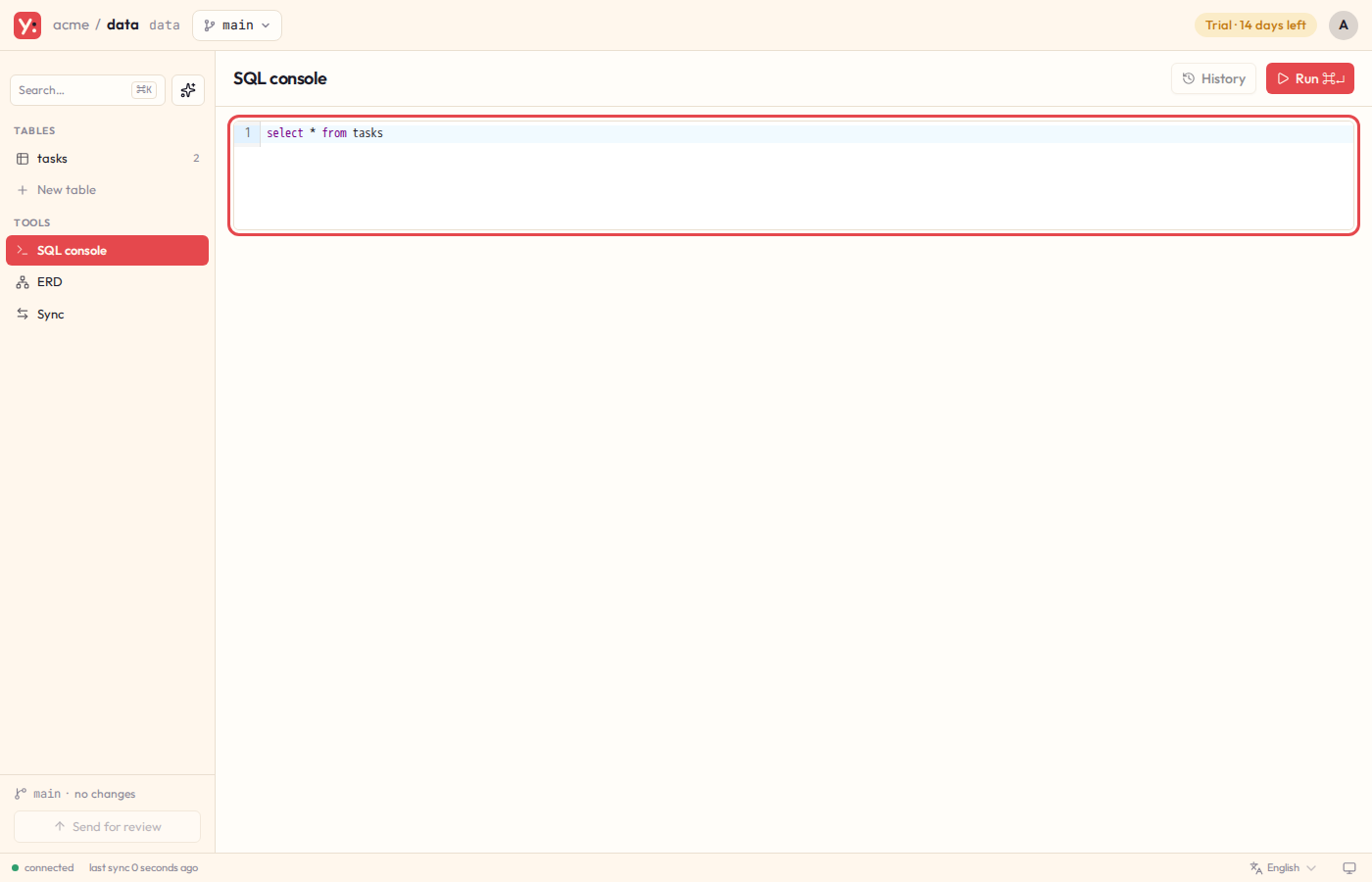
Select SQL console in the sidebar.
-
Type a query in the editor.
-
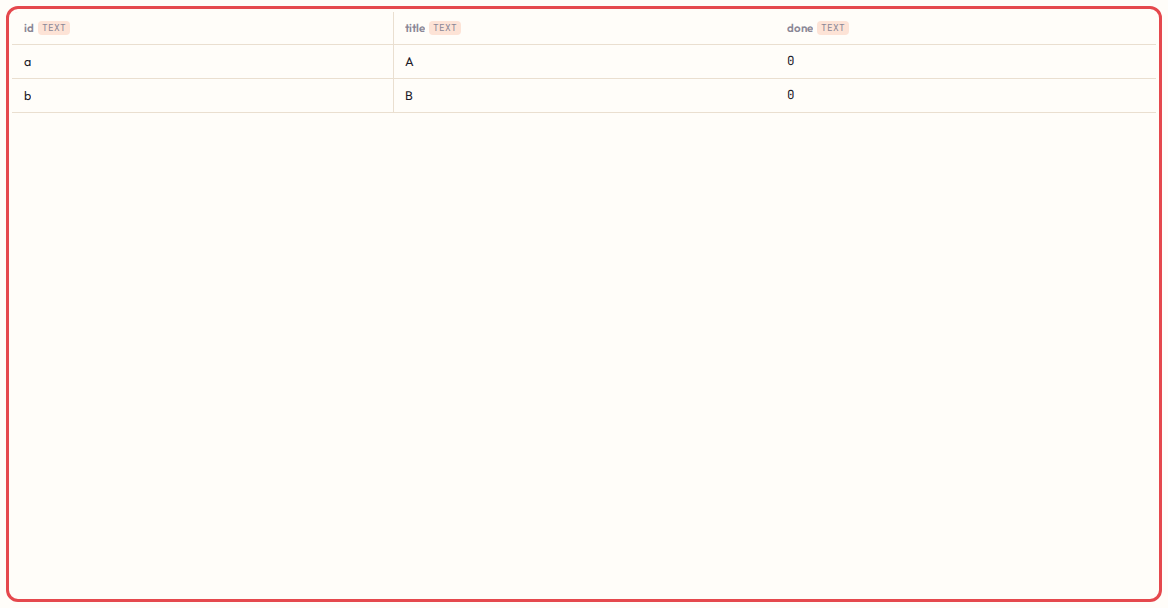
Select Run. The rows come back as a table.
A query that changes data, such as update, edits the record files like a saved form does, and the console lists the files it changed. Cloud asks you to confirm a DROP, or a statement without a WHERE, before it runs.