
Web UI
yamlite serve notes --open
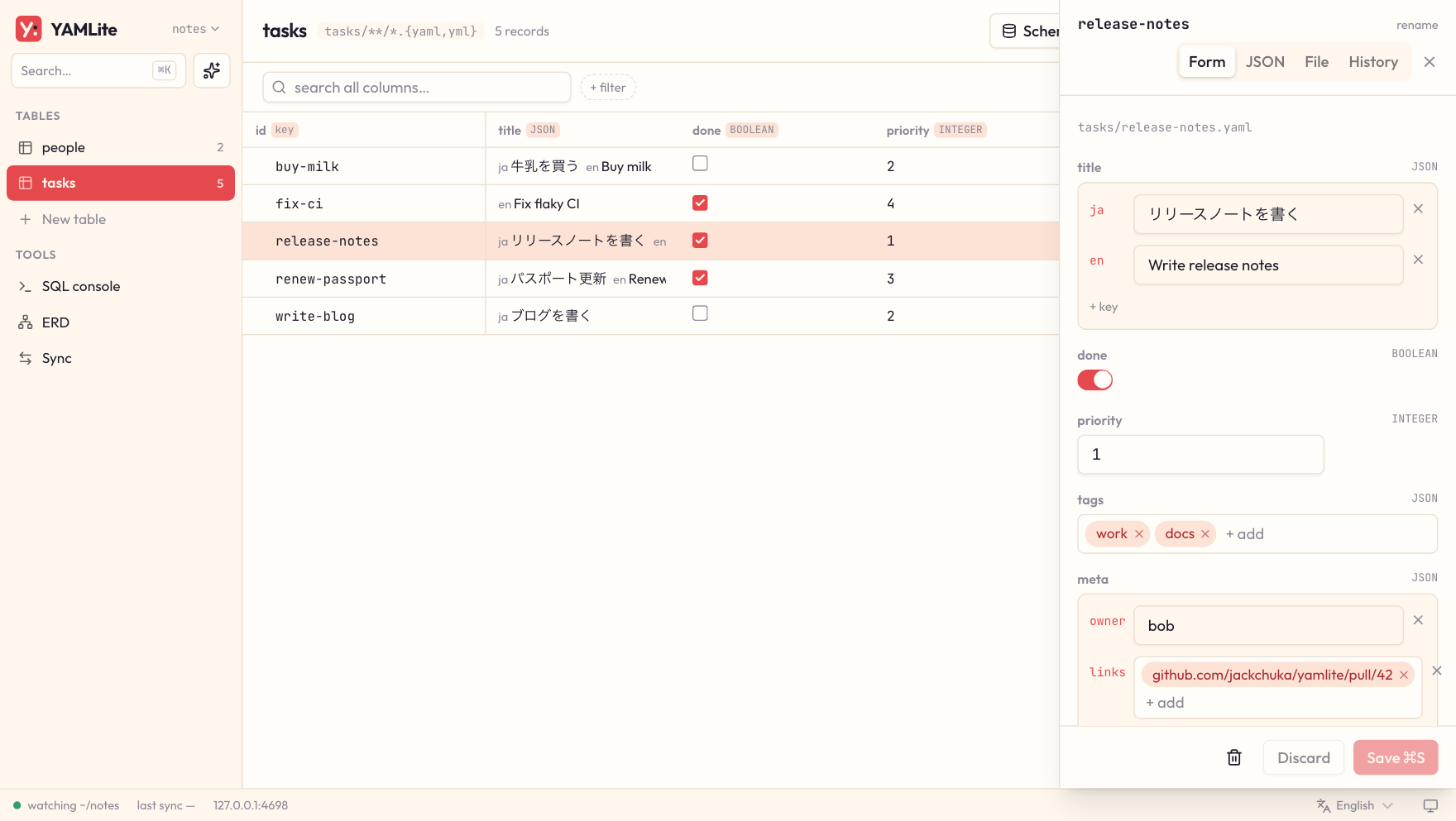
serve runs watch and a local web UI in one process: browse and edit records with forms that fit each column type, check each table’s columns, references and indexes, see every table, view and reference on one diagram (ERD), run SQL, and see sync activity, warnings and conflicts as they happen. Edits from the UI are written to the database and reach your YAML files through the same sync as any other app, so comments and the safety checks all apply. A conflict’s losing side can be restored from the Sync page.
The UI also works on a phone: below 768px wide the sidebar moves behind a menu button and records open full screen. To reach it from another device, start serve with --host 0.0.0.0.
The UI is available in English and Japanese. It follows your browser language on the first visit; switch it from the language menu in the status bar.
- It listens on
127.0.0.1:4610and prints a URL with an access token (new for each run, reusable until the process stops); open that URL (or pass--open). Requests without the token, from other sites, or with an unexpectedHostare refused. serveandwatchcannot run on the same folder at the same time.--host 0.0.0.0exposes it to your network; anyone with the URL can then change your data.- The ERD page marks references with problems. Click a table to highlight its neighbours, or double-click it to open the table. The layout is recomputed only when the tables, columns or references change, so nodes you drag stay where you put them.
- A record’s History tab lists the git commits that changed it, newest first, with uncommitted changes on top: each shows the fields it changed, and the YAML diff on request. Renames are followed, and in a list file only the commits that changed that record are shown. Restore this version puts an older version’s values into the form without saving them. It needs
gitand only reads the repository; the static export has no History tab. - Edit rules in a table’s schema changes its
required,values,formats,min/maxandreferences, or an expanded view’s, and can also add or remove the table’s indexes and its expanded views. Each change is checked against your data first (“Saving adds 2 warnings”), and only Save writesyamlite.yaml, keeping its other lines and comments. Types, keys and paths stay in the file. Ifyamlite.yamlchanged since you started, saving is refused and your draft is kept.
Send for review
Section titled “Send for review”When the data folder is in a git repository with an origin remote, the bottom of the sidebar shows the current branch and how many files under the data folder changed. Send for review lists the changed files by table and record, asks for a title and an optional description, and sends the files you keep checked:
- On the default branch, it creates a branch with the name you enter, or
yamlite/review-<date>-<time>when you leave it blank, commits the files there, pushes it and opens a draft pull request. The UI stays on the new branch, so later edits go to the same pull request. - On any other branch, it commits and pushes to that branch. If the branch already has an open pull request (
ghtells), the dialog links to it and asks only for a commit message; otherwise it opens a draft pull request. - With Ask AI set up, Write with AI drafts the title and description (or the commit message) from the records and files you keep checked, in the UI’s language. A new pull request’s description follows the repository’s
pull_request_template.md(in.github/, the root ordocs/, as GitHub looks for it; aPULL_REQUEST_TEMPLATE/folder of several is not used), and then the AI instructions. You can edit the draft before sending. - With
ghinstalled and logged in, the pull request is created for you. Without it, you get a GitHub link that opens the pull request form already filled in. For other hosts the branch is pushed and you open the pull request there. - Only files under the data folder, and the files of tables that live outside it (
path: ../…), are committed. Git runs without prompts, so pushing needs credentials that already work without asking. - Each record is listed under its file, with the fields it changed; the arrow shows them as committed and now. A change inside a map field (a JSON column) is shown by its path, such as
cells.b.requirement, so only what changed is listed. ↶ puts a changed or deleted record back as committed, and the bin removes a record that was never committed, after a second click. These go through the same writes as the form, so comments and the safety checks apply. Put back does it for the changed and deleted records of the checked files. The toast that follows can undo it.yamlite.yaml, pages and other files are listed but never changed. - While it runs, edits and other git steps wait (they get 409). Switching back to the default branch after the pull request is merged is up to you.
Click the folder name at the top of the sidebar to see its full path, yamlite.yaml, the database file and the address.
Ask AI
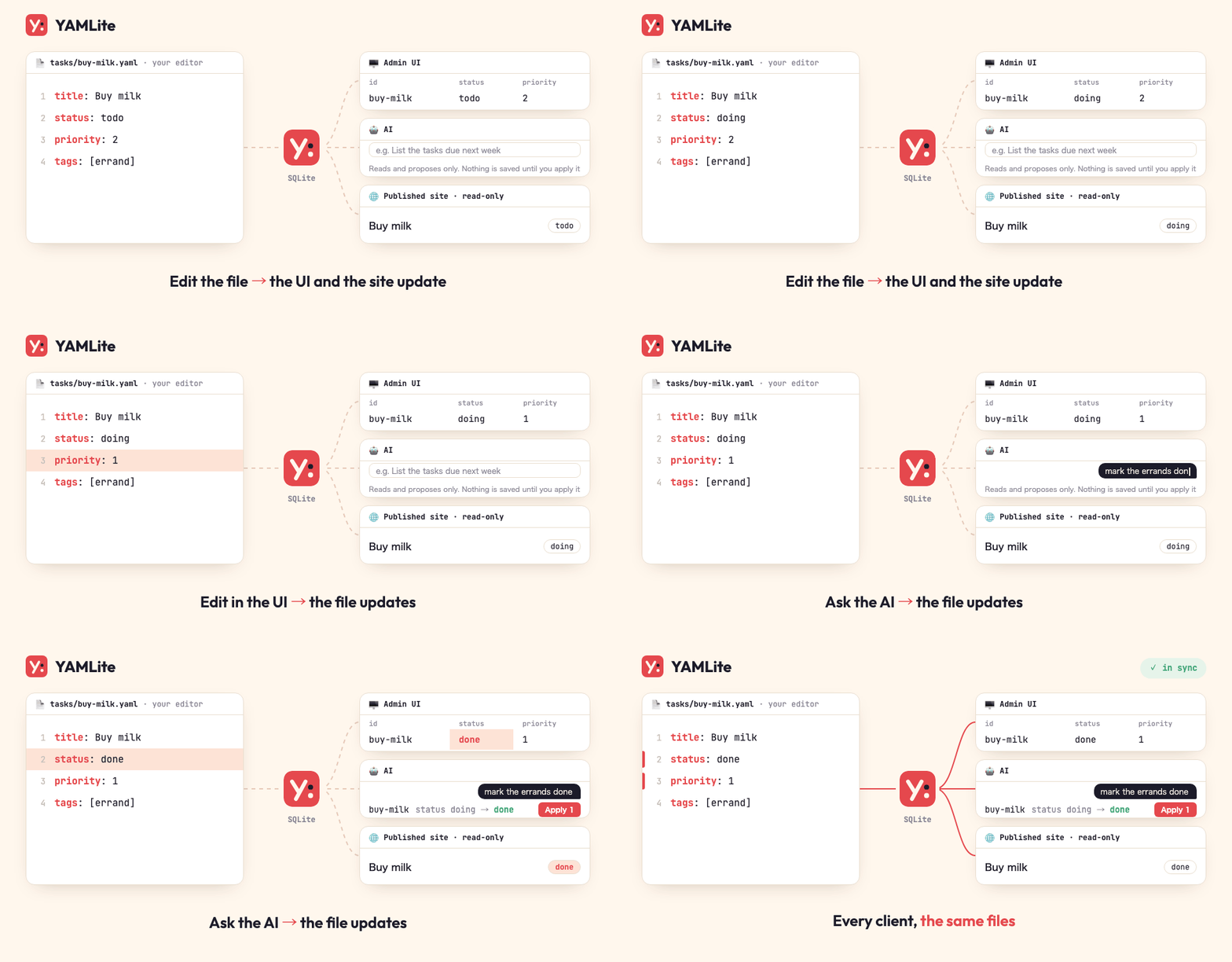
Section titled “Ask AI”Set ANTHROPIC_API_KEY or OPENAI_API_KEY before yamlite serve, or enter a key in the Ask AI panel. Ask in plain words — “list the tasks due next week”, “mark every errand task done” — and the model searches with SQL and proposes changes. A proposal shows each record’s changes in the panel and in the table; nothing is written until you press Apply, and then it is saved like an edit in the form, so comments and the safety checks apply.
- Models: the panel suggests the ones checked with YAMLite — Anthropic
claude-sonnet-5-5(default),claude-haiku-5-5,claude-opus-5-5; OpenAIgpt-5,gpt-5-mini— and takes any other model id the provider offers. Other models may not use the tools well. - A key entered in the panel is kept in the browser only if you tick “Remember the key on this device”, and is sent only to your
yamlite serveand from there to the provider. What you ask, and the data the model reads to answer, go to that provider. - The model can only use YAMLite’s tools: read the schema, run read-only SQL, read records, check rules, read the guide, and create proposals, and, in a git repository, the git tools below. It cannot run commands or write files.
- With
yamlite serve --web-search, the model can also search the web, through the provider’s own web search tool, to check or fill in facts the data doesn’t hold. The pages it found are listed under the answer. Each search is billed to the API key on top of tokens (see the provider’s pricing), and an Anthropic answer makes at most 10. Search queries go to the provider’s search, and the model may put values from your data in them, so turn this on only for data you are fine sending there. An Anthropic organization admin can turn web search off in the Claude Console; requests then fail. - A proposal is refused, with nothing written, if a record in it changed after it was made. It holds at most 500 rows. If applying would add rule warnings (required, allowed values, formats, bounds), the proposal shows them; they don’t block applying, as with any other edit.
- With
--host 0.0.0.0, anyone with the URL’s token can use Ask AI, and it spends the API key thatserveread from the environment. - Conversations stay listed under Conversations while
serveruns; conversations and pending proposals are kept in memory, so stoppingservediscards them. - When the folder is in a git repository, the agent can also read its status, diffs, log and branches, and propose git steps: create or switch a branch, commit files it picks, push a branch, fast-forward-only pull, and open a draft pull request. The card lists every step and the files of each commit; nothing runs until you press its button, and the steps stop at the first failure. Branch names must be plain short names (no leading
+or-, norefs/orheads/prefix, no@). Push never forces, and pushing to the default branch is refused, as is pushing when the default branch cannot be determined. - While git steps run, edits in the UI and other proposals are refused until they finish.
- Push and pull use your own git setup (SSH keys or credential helper); YAMLite never asks for a password. Pushing and opening a pull request publish your data outside this machine.
- If GitHub CLI is installed and logged in, the pull request is created for you and linked in the chat. Without it, the card links to GitHub’s pull request form with the title and body filled in.
- Switching branches changes the YAML files, and the database follows them, like an edit in your editor, even when many records disappear. If a declared table’s folder doesn’t exist on the target branch, the switch still happens but the database sync fails, and the card says so.
AI instructions
Section titled “AI instructions”ai: in yamlite.yaml tells the AI features what everyone working in the folder wants: the language to write in, what the data’s values mean, how pull requests are written. Edit it in the file, or with the scroll button in the Ask AI panel or Edit instructions under Write with AI; a save there changes only these keys and leaves yamlite.yaml as a change to send like any other.
ai: # Ask AI and pull request drafts instructions: | Write in English. In tasks, status todo means not started. # pull request drafts only, after instructions pullRequests: Start titles with a verb. Say why in the description.- Each is text of at most 4,000 characters; an empty one counts as none. They come after YAMLite’s own prompt and win where they differ,
pullRequestslast. Pages’ AI does not get them: a page sends its own prompt. - They are read for every answer and draft, so a change applies at once.