
Sign in and open a repository
You sign in to YAMLite Cloud with your GitHub account. Cloud is open by invitation, so use an account that has been invited.
-
Open YAMLite Cloud and select Sign in with GitHub.
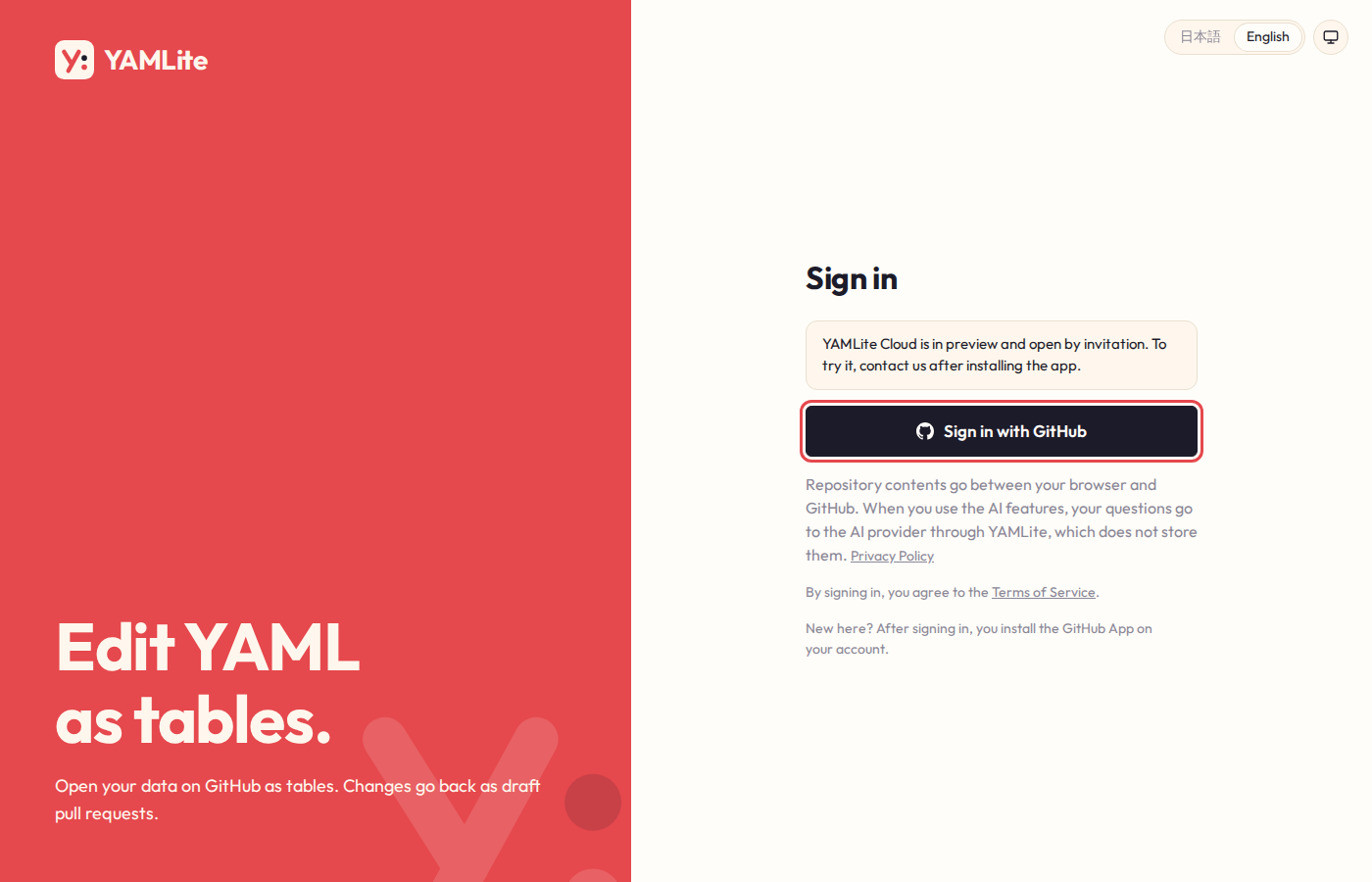
-
Authorize YAMLite on GitHub, then select the repository you want to edit.
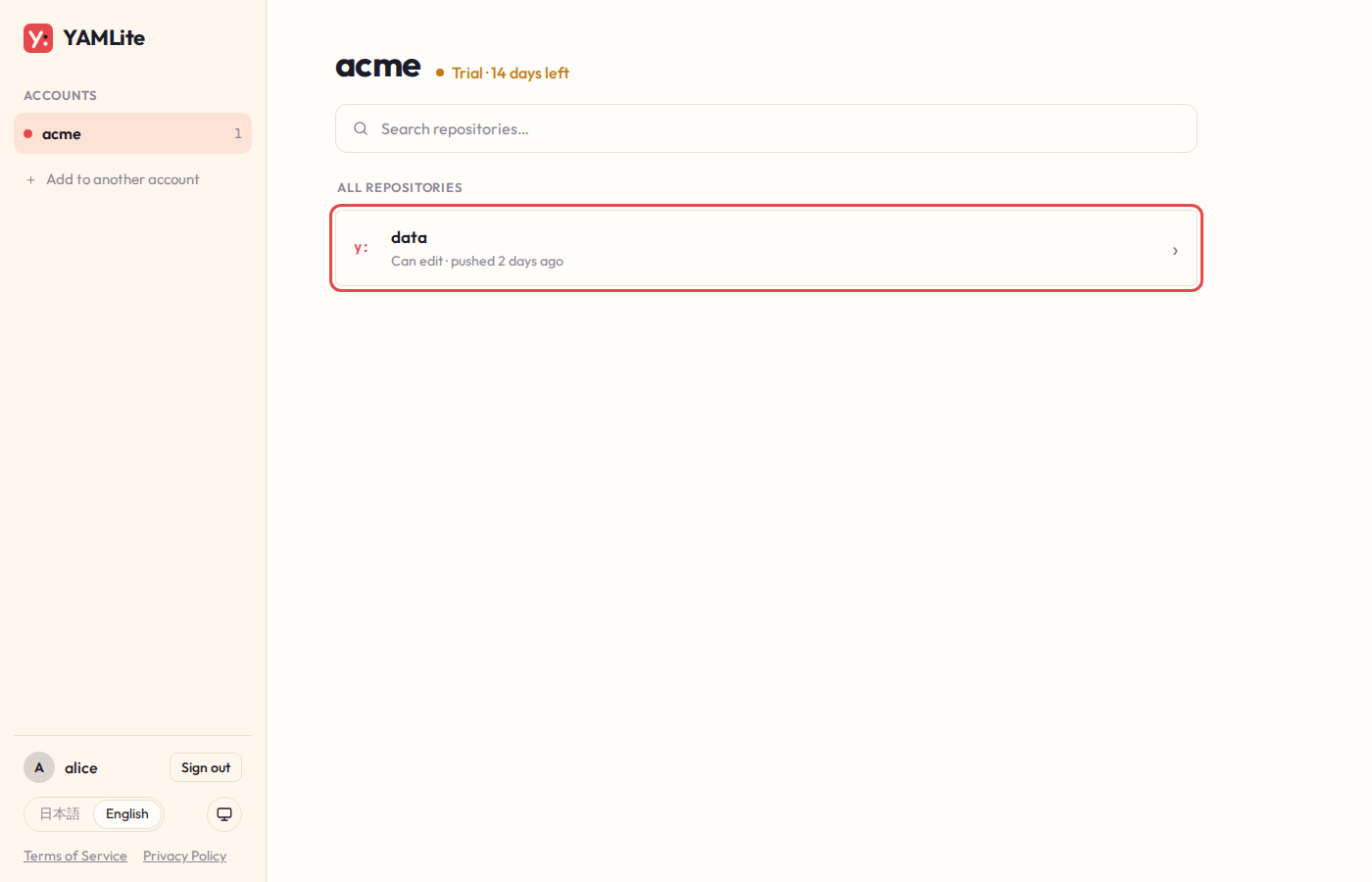
-
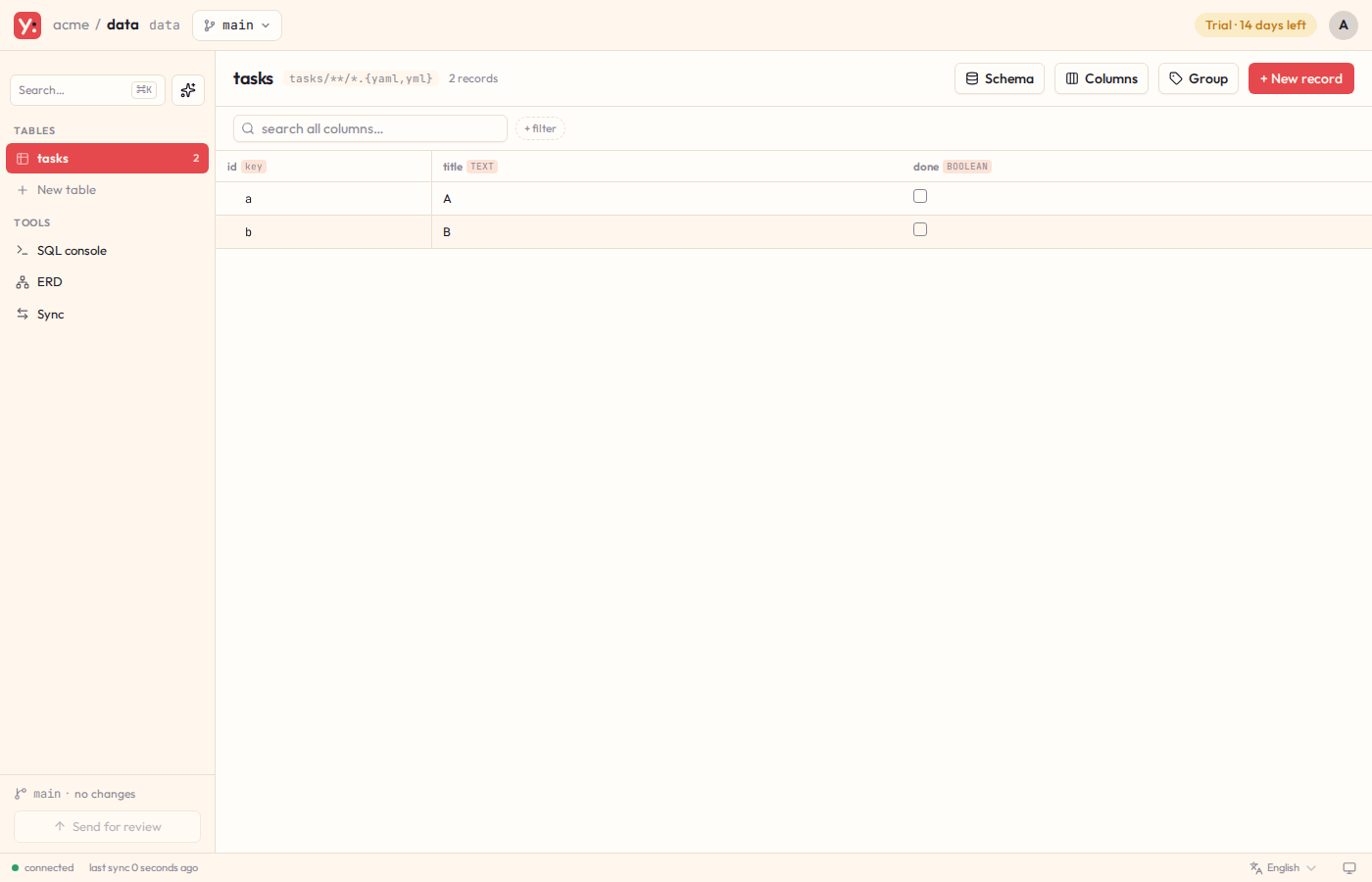
The repository opens on its data, with the tables on the left and the records as rows.
The repository list shows the repositories the YAMLite GitHub App can access, and your trial status sits next to the account name. If your account has not installed the GitHub App yet, install it first when asked. For an organization, an owner has to do this.
A repository without yamlite.yaml
Section titled “A repository without yamlite.yaml”If the repository has no yamlite.yaml, Cloud asks which folder holds your data.
-
Select the folder that holds your data.
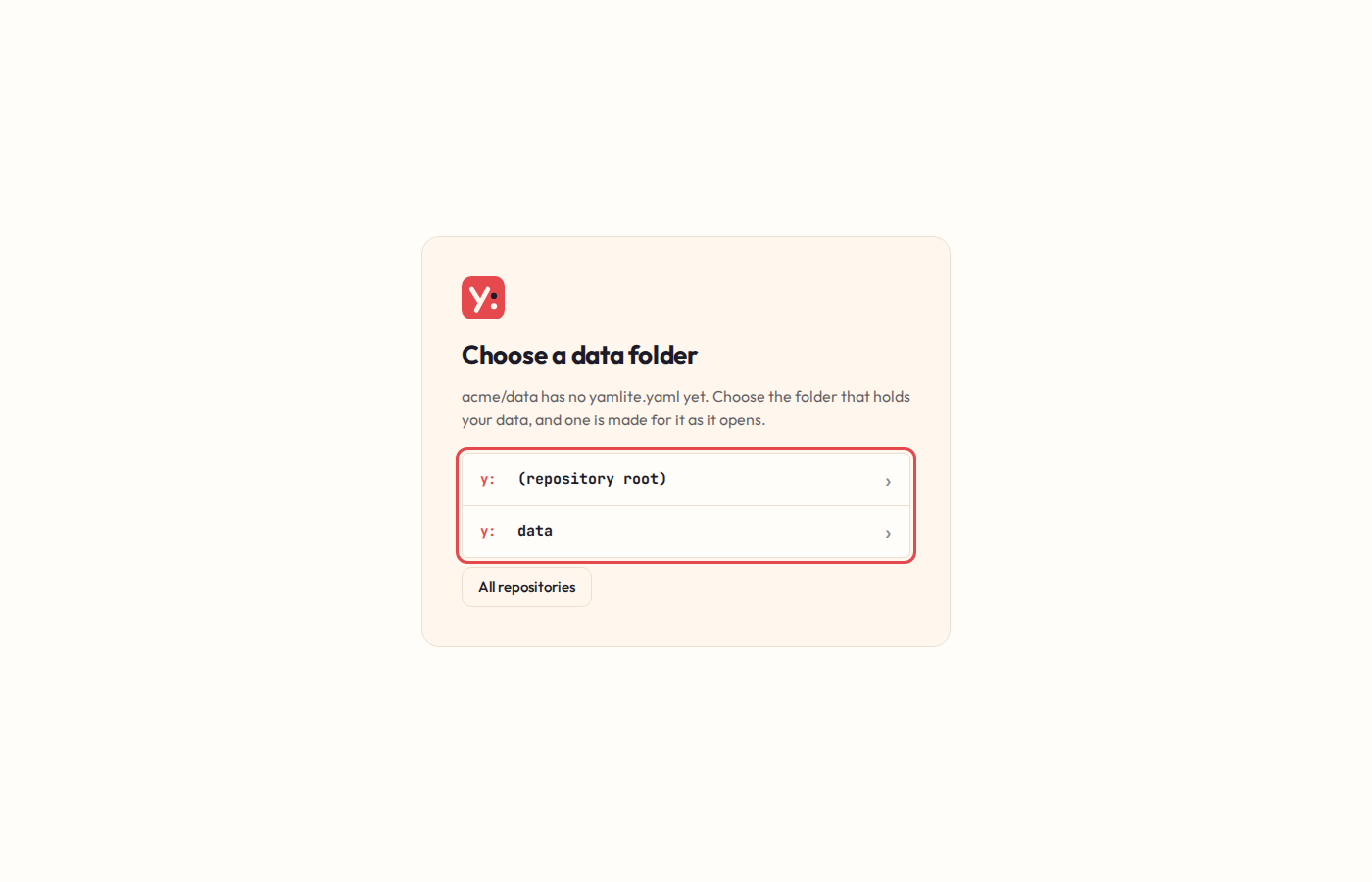
Cloud generates a yamlite.yaml for that folder as it opens, and sends the file with your first pull request.